



Google Maps remains the most effective tool for tracking and locating someone. However, before you can successfully track someone’s location on Google Maps, they have to be sharing their location with you. That’s the only way you can successfully track them, which is why this guide explores how you can share your location with Google Maps.
It was possible to track someone’s location with Google Maps without them knowing, but that does not work anymore, as it violates the targeted person’s privacy. Hence, before you can successfully track a person’s location, they should be sharing their location with you. They can set how long they want you to track their location.
Why would you want to share your location with someone?
There are many reasons to share your location with someone. Suppose you are going somewhere for the first time, perhaps to see a friend. The person can share his location with Google Maps to help you find him.
Also, location sharing is necessary when tracking your child or spouse. With that enabled, it will be easy to know their location on the Map with a few clicks.
Employers can use it to track their employees to make sure they don’t leave a particular location. And if location sharing is enabled on your lost or stolen phone, it will be easy to locate it.
How to share your location with Google Maps
Before you can share your location, you must have Google Maps installed and logged in with your Gmail account.
Location services need to be turned on. To enable, swipe down from the top of your screen to reveal the control center. Tap on Location to turn it on.
Ensure you are connected to a mobile network to get your accurate location.
We believe all that is sorted, let’s proceed to how you can share your location with Google Maps.
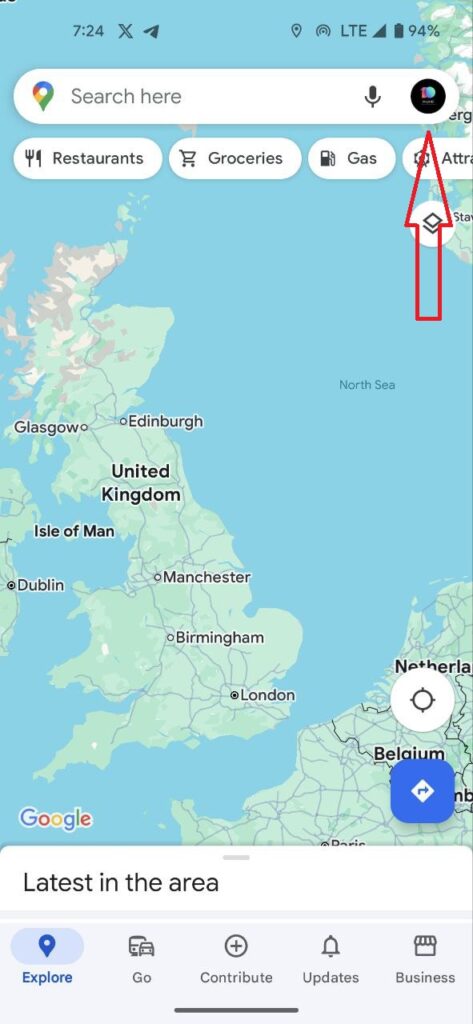
- Locate and launch the Google Maps app on your phone. If you are using a browser, go to https://maps.google.com.
- Tap your profile picture. It’s located at the top right of your screen, and a menu will appear.
- If you are using a web browser, click on the three dots at the top left to reveal more options.
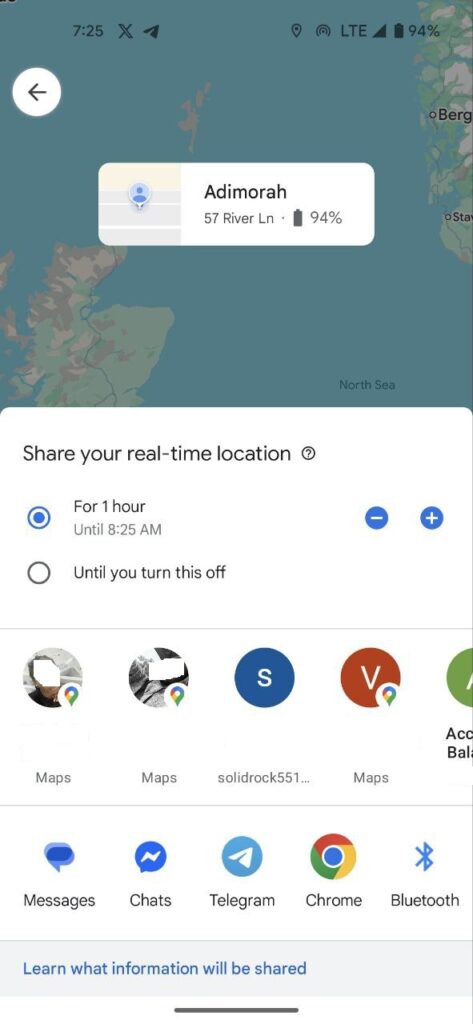
- Tap on location sharing and tap share location on the next window. You can adjust how long you want to keep sharing your location using the – + buttons. If you want it to remain active till you turn it off, select “until you turn it off.”
- Below the screen, you will see options to share your location. You can use WhatsApp, Instagram, Facebook and others. Also, you can send it as an SMS. On the screen where you have your contacts, scroll to the left until you see more. Tap on it, and you can type in the phone number or email of the person you want to share your location with.
Share your location with WhatsApp
Perhaps you cannot share your location using Google Maps, there is an option to use WhatsApp. It’s probably easy and more straightforward compared to using Google Maps.
- Head to WhatsApp and open the chat of the person you want to share your location with.
- Tap on the attachment icon, close to the camera button.
- Click on ‘location’ and tap ‘share live location.’
- Select how long you want the person you are sharing your location with to track you. Unlike Google Maps, you can only choose from 15 minutes, 1 hour, and 8 hours.
- After making all three necessary adjustments, tap send.
How you can stop sharing your location anytime
To stop sharing your location using Google Maps, launch the app
- Tap on your profile picture and select Share location
- At the bottom of the screen, you will see “Sharing via link.” Tap on it to expand the window, and then click stop
- On WhatsApp, open the chat with the person you share your location with. You will see a button “Stop Sharing” tap on it.
What happens when you stop sharing your location?
Once you stop sharing your location, the link automatically expires, and you can not be tracked using it. When the person tries clicking on the link, a message “this person is no longer sharing their location” will pop up.
On WhatsApp, clicking on the link will open the Map, but the message “Live Location ended” with the time when it was last updated will be displayed.
How can I continue tracking someone when they stop sharing their location?
Unfortunately, there is no way around it. You will need their permission to keep tracking them. You can ask them to share their real-time location, which they can do using any of the two methods above.
Meanwhile, there might be a way to track someone’s location without them knowing. We don’t recommend it, but you can always get permission before using it, especially when you want to know your child’s location. Also, employers can use it to monitor their employees to ensure they don’t leave a particular environment.
Conclusion
Many apps can track someone’s location without them knowing but need access to the target device to install these apps. Additionally, you will pay a few bucks before using their services, but if it’s worth it, we recommend mSpy.
