


There is this sinking feeling that comes when you cannot find your phone where you kept it. That’s one of the worst things that can happen to you, considering that our smartphones are literally part of our lives. And with smartphones getting expensive, losing your phone makes it even worse.
That moment when you start turning your house upside down, looking for your smartphone, or checking your pockets and purse, your phone probably needs to be found. Fortunately, we have passed that age when someone can steal our phone, and we can’t track it. With the in-built Find My Device on Android, you can track and find a lost or stolen Android phone in a few minutes.
However, it would help if you had Find My Device enabled before losing your phone, and then you can track and find it using this method. However, the feature is enabled once you sign in with your Google account on your Android phone. You should check the settings to ensure they are enabled, and we will show you how to do that below.
How to enable Find My Device on Android (Pixel)
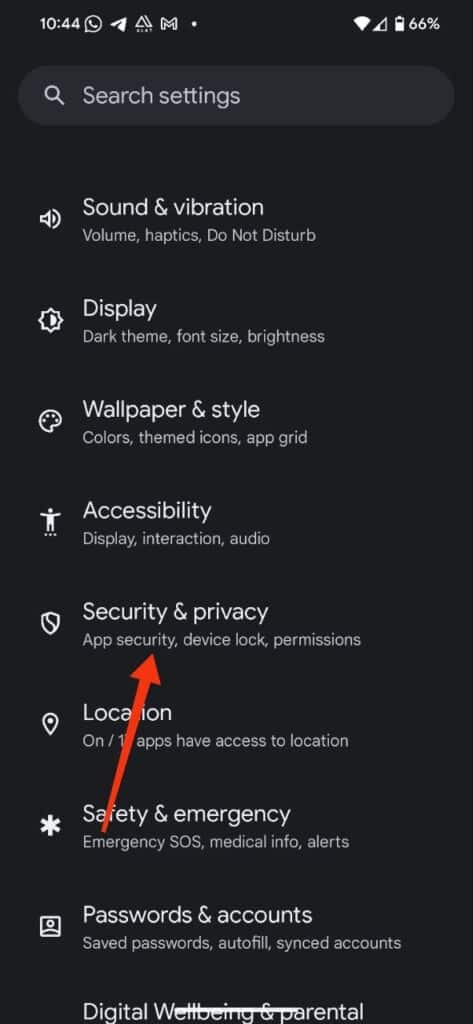
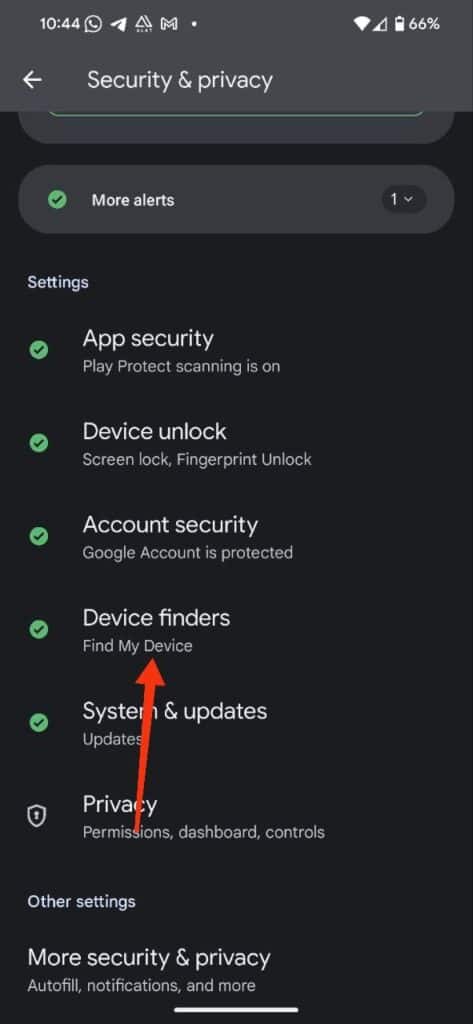
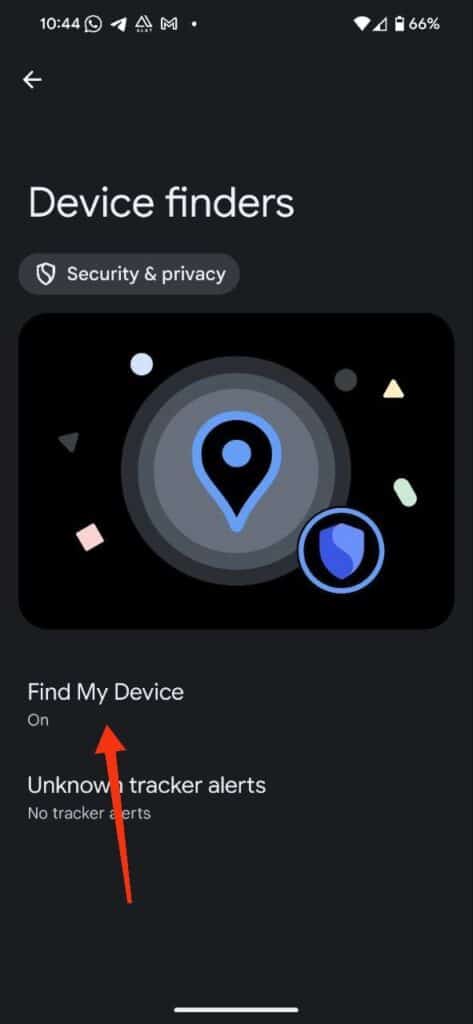
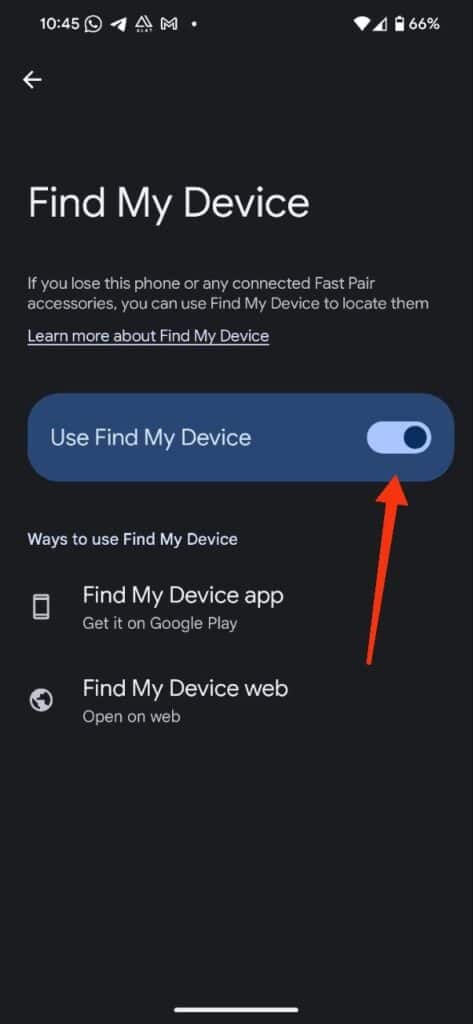
- Head to your Android phone’s Settings.
- Please scroll down to reveal Security & privacy and then tap on it
- Click on Device Finders and Tap on Find My Device
- It should be on, but if it’s not enabled, you should allow it to
How to enable Find My Device on Android (Samsung)
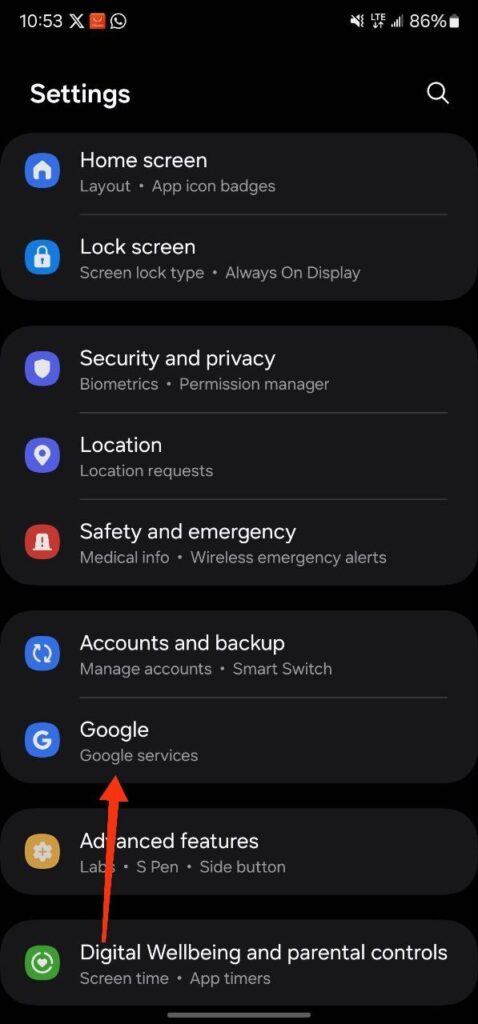
- Go to your Galaxy phone settings app.
- Please scroll down to reveal Google and then tap on it.
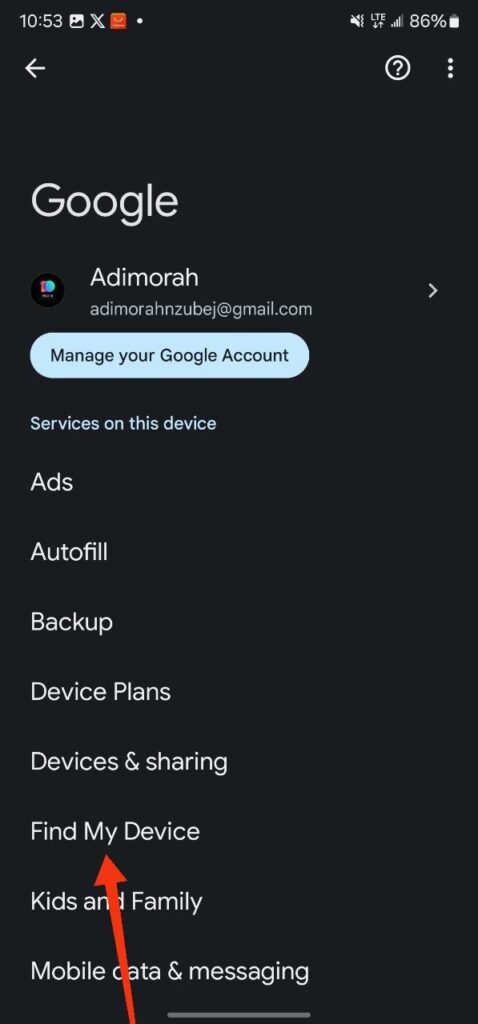
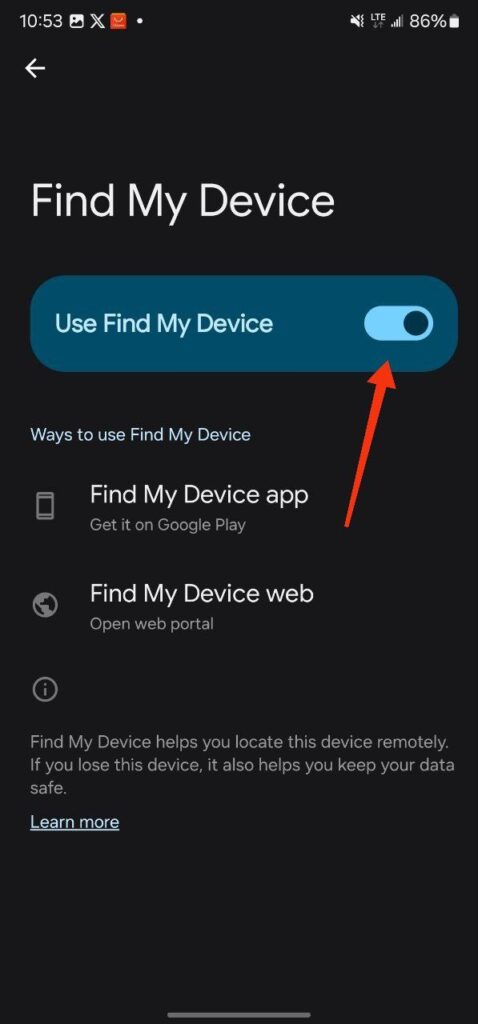
- Click on Find My Device. It should be on, but if not, you should enable it.
Meanwhile, Samsung has its tool for locating a lost or stolen phone, SmartThings Find. To be able to track a lost or stolen Galaxy phone, you need to enable ‘Lost device protection.’
- Head to Settings>>Security and privacy>>Lost device protection.
- There are five options, including Offline Finding, and you should enable all of them.
With all these features enabled on your device, finding your lost or stolen Android phone would take little time. However, while you can track offline Galaxy phones, tracking your other Android phones is only possible if they are turned on and connected to a mobile network or Wi-Fi. However, Google is working on that feature and has enabled it on the Pixel 8 Pro and Pixel 8, but limited to the US and Canada. We hope they will extend the ability to do so to other regions in the coming weeks.
How to track and find a lost or stolen Android phone
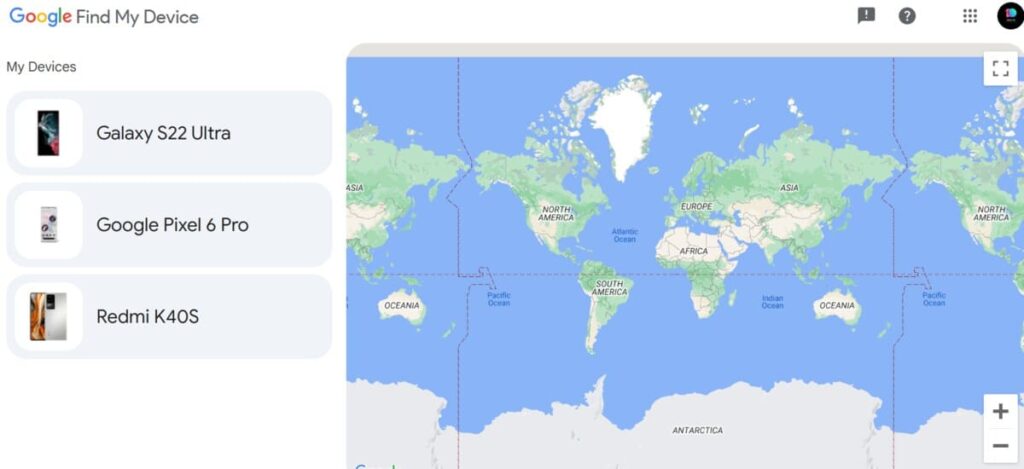
- On your phone or PC browser, go to google.com/Android/find.
- Once the page opens, you will see all your Android phones signed in with the same Google account.
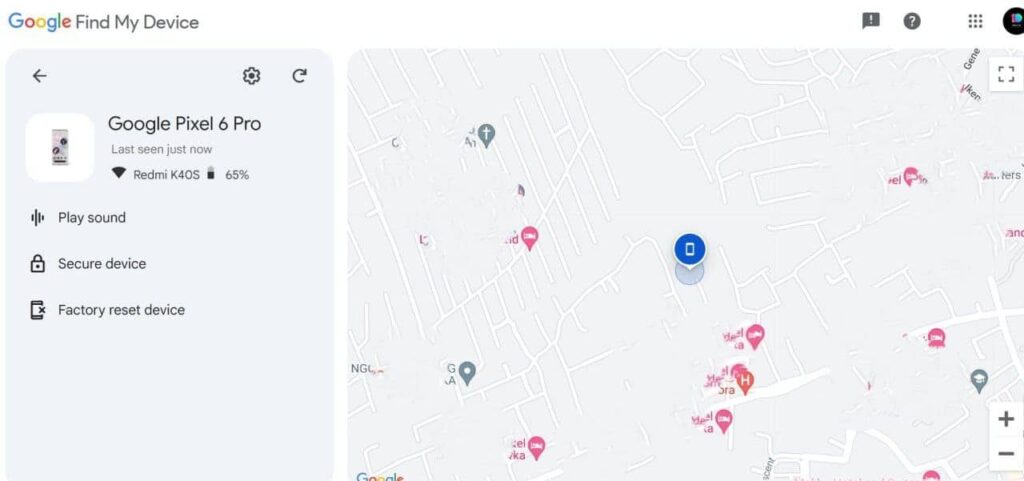
- Tap on the one you lost or that has been stolen.
- You will know the location of the device on the Map.
- Play a sound to locate the device if you have misplaced it.
Meanwhile, there is an option to ‘Secure device‘. We recommend using the option when the device has been confirmed lost or stolen and you didn’t just misplace it.
Also read: How to track and find your lost Android phone using Google Maps
The Secure Device option lets you lock the device remotely with its PIN, pattern, or password. You will be signed out of your Google account on the device, but you can still locate the device.
Factory reset device. This option will erase all data from your device permanently, and you can’t track and locate the device’s location after the reset. Of course, the device needs to be connected to Wi-Fi, but if it is offline, erasing will begin once it’s online again. We recommend the option when there’s no way to recover the device.
How to track and locate a stolen or lost Samsung Galaxy phone
While Samsung phones support Google Find My Device, the company has SmartThings Find. It works similarly to the former but can track your device even when switched off. Below is how to track your phone using SmartThingFind.
- On your PC browser or your second phone, head to “https://smartthingsfind.samsung.com.
- Sign in with your Samsung Account to see all the devices signed in with your account.
- On the left side of your display, tap the Samsung phone you want to know its location.
Of course, you can only track and locate phones with your Samsung account signed in
On the SmartThings Find page, you will see where your Samsung phone is on the Map, its battery percentage, and when the location was last updated. You have the option to ring the device, lock it, track its location, erase data, and Extend battery life.
Ring: This option will ring your Galaxy phone for one minute at a maximum volume, even if the sound mode is set to Vibrate or Mute. We recommend using this option when you misplace or lose your device in a crowded place.
Lock: if your device is not locked, you can remotely lock it. You can lock the screen and display emergency contact information or a message on your Lock screen. You can lock the power off to prevent anyone from turning off the phone.
Track location: this will check where the missing phone is every 15 minutes and report to you.
Erase device: You can remotely wipe it, but you must sign into your Samsung account and bypass the two-factor authentication before wiping the device.
Extend battery life: When you extend the battery life, the device enters power-saving mode and disables background activities, meaning data won’t be backed up to Samsung Cloud.
If your Samsung device is switched off, you will be notified when it is turned back on with the email provided, though you can see the last location. Meanwhile, other Samsung phones around your lost or stolen phone can help find your device even if they are offline. These Samsung gadgets communicate with each other using Bluetooth Low Energy (BLE) to help find a stolen or lost phone.
Unfortunately, you cannot track the phone when switched off, as power is needed to operate the Bluetooth Low Energy. Nevertheless, you will see the last updated location, and a notification will be sent to your email once the device comes back online.
Track my Samsung Galaxy phone not connected to the internet
If you have offline finding enabled, you can locate your Samsung phone while they are online with the help of other Samsung gadgets around. These devices communicate with your phone using Bluetooth Low Energy to ping its location. However, the problem is when no Samsung gadgets are within the BLE range of your lost or stolen device.
Conclusion
Finding a lost or stolen Android phone is only possible when all the right features are enabled. You can only use Samsung’s offline finding when you have turned it on before losing your phone. Hence, we recommend you enable Find My Device, as it does not only help locate a lost phone but misplaced phones, as well when you play sound.
